
When I decided to start learning cybersecurity from scratch, one of the recommendations I kept seeing was to learn Linux.
As a developer, I am already comfortable with terminals, code and systems, but that does not mean I know Linux deeply enough to move confidently in a cybersecurity environment.
So before jumping into tools such as Wireshark, Nmap or Kali Linux, I want to strengthen the fundamentals. In this article I am collecting the commands I am learning and, more importantly, trying to understand what each one actually does.
This article is part of my cybersecurity learning journey from scratch.
Why Linux matters in cybersecurity
Linux runs a huge number of servers, cloud services, network devices and professional systems. Many tools for system administration, network analysis and security are also especially at home in Linux environments.
My goal is not to memorise commands.
I want to understand what is happening when I run one: which user I am, where I am in the filesystem, what permissions a file has, which processes are running and which services are listening.
That foundation feels much more valuable than jumping straight into advanced tools.
Moving around the system
The first step is learning how to orient myself inside the filesystem.
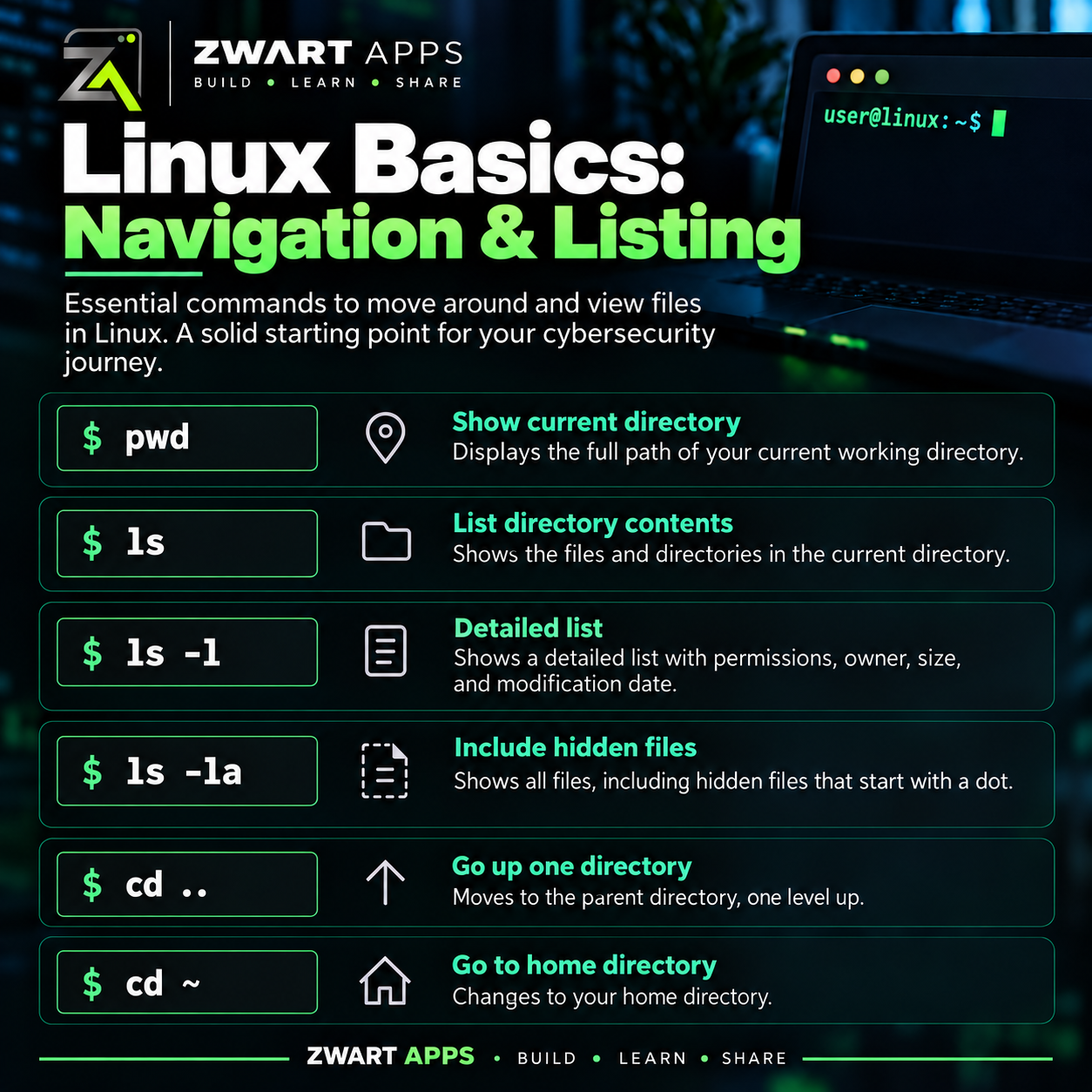
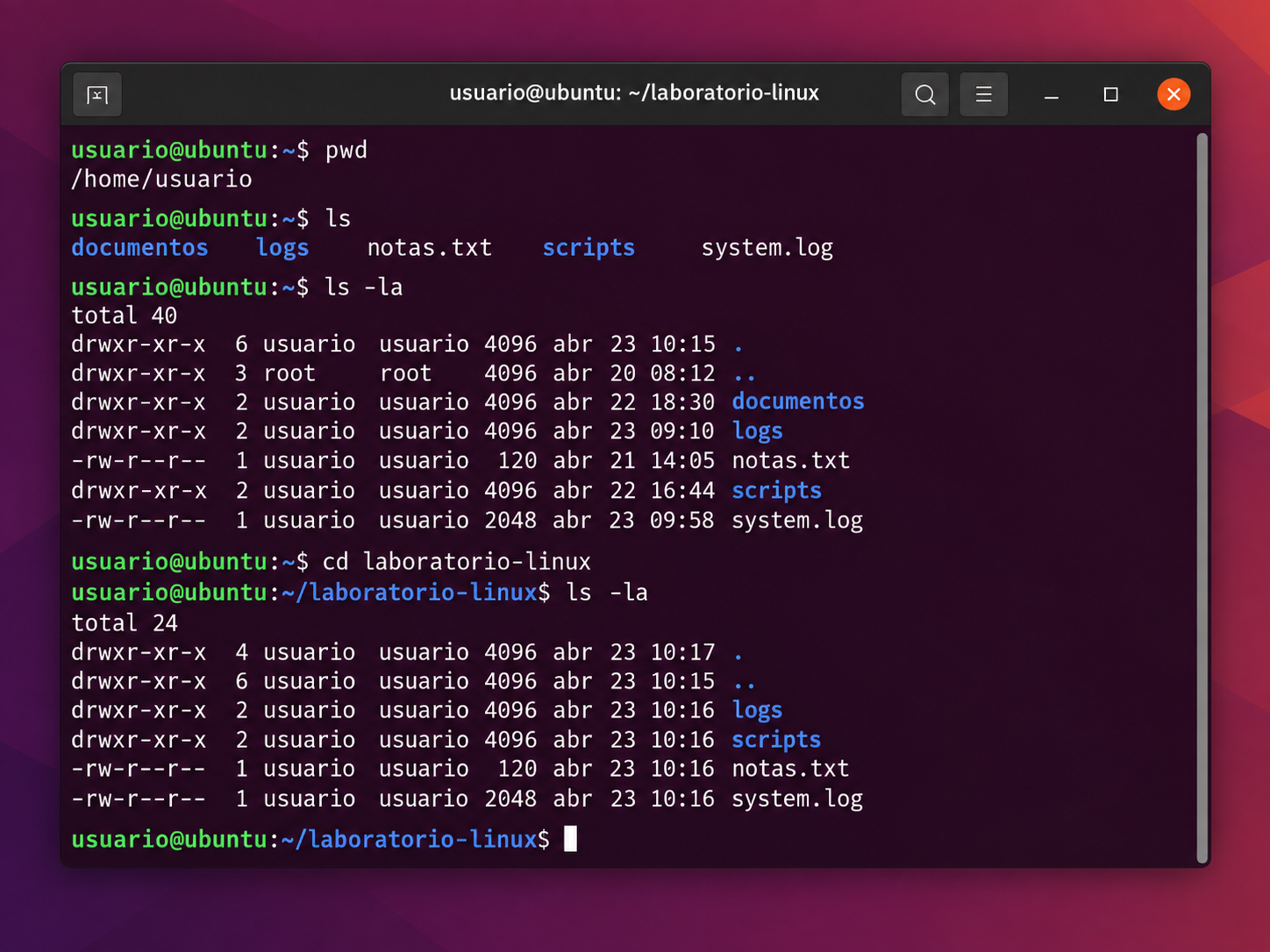
pwd
pwdShows the current working directory.
ls
lsLists the contents of the current directory.
Some useful variations:
ls -l
ls -a
ls -la
-l adds details such as permissions, owner and size. -a also includes hidden files.
cd
cd /path/to/directoryChanges the current directory.
cd ..
cd ~
.. moves up one level and ~ (ALT + 126) returns to the home directory.
Working with files and directories
mkdir
mkdir labCreates a new directory.
touch
touch notes.txtCreates an empty file quickly.
cp
cp file.txt copy.txtCopies files. For directories, I can use cp -r.
mv
mv file.txt documents/Moves files and can also rename them.
rm
rm file.txtDeletes a file. For a directory, rm -r directory removes it recursively.
This is one command where I want to build the habit of checking twice before pressing Enter.
Reading files from the terminal
cat
cat file.txtPrints a file directly in the terminal.
less
less file.txtLets me browse longer files without dumping everything at once.
head and tail
head file.log
tail file.log
head shows the first lines and tail the last ones.
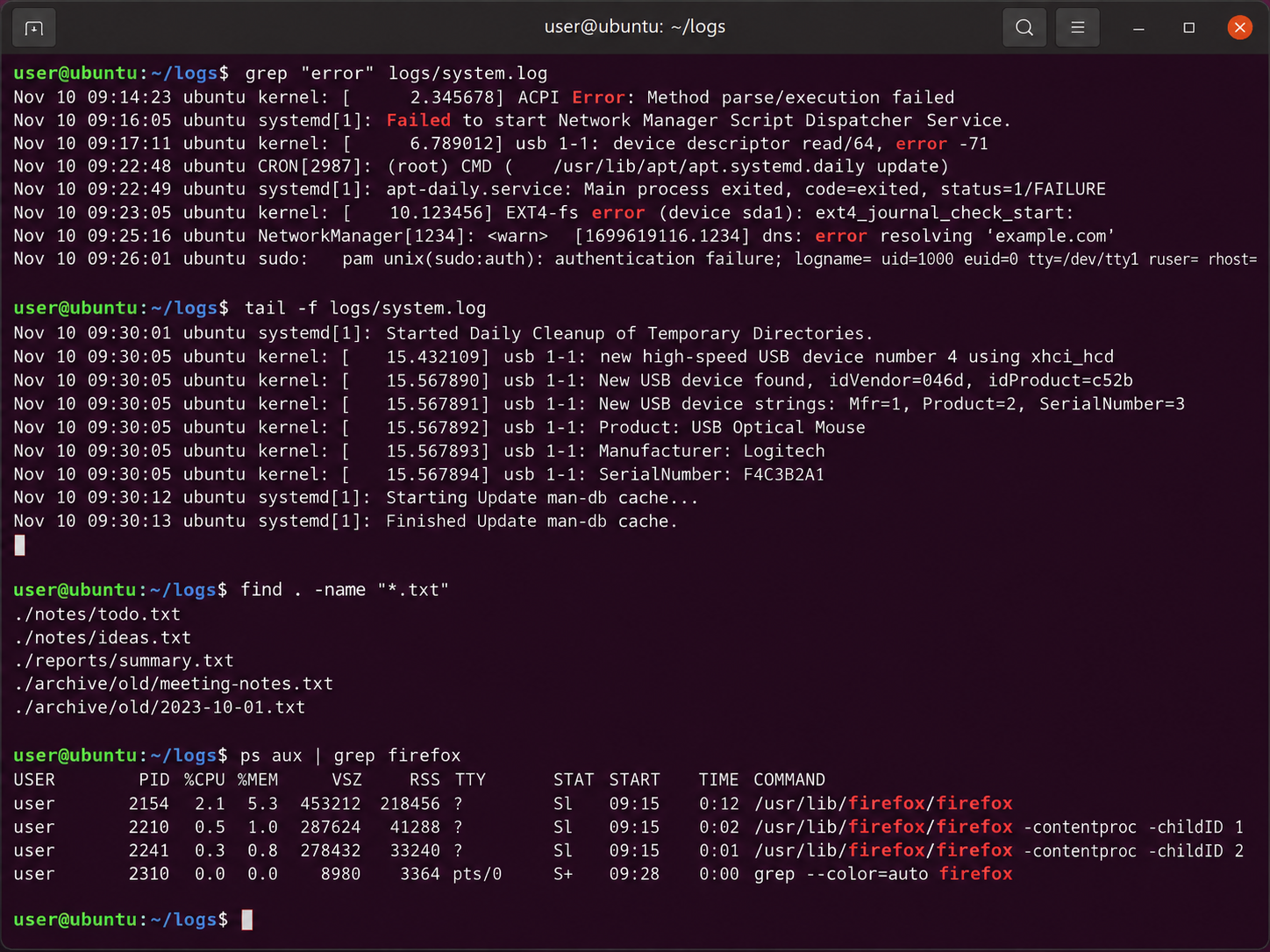
tail -f file.logThis follows new lines as they are written, which will be useful when I start analysing logs.
Searching for information
grep
grep "error" file.loggrep searches for text inside files.
grep -i "failed" auth.log-i makes the search case-insensitive.
find
find /home -name "*.txt"Finds files using different criteria.
find / -name "config.php" 2>/dev/null2>/dev/null hides permission-related error output from the screen.
Users and identity
whoami
whoamiShows which user I am currently using.
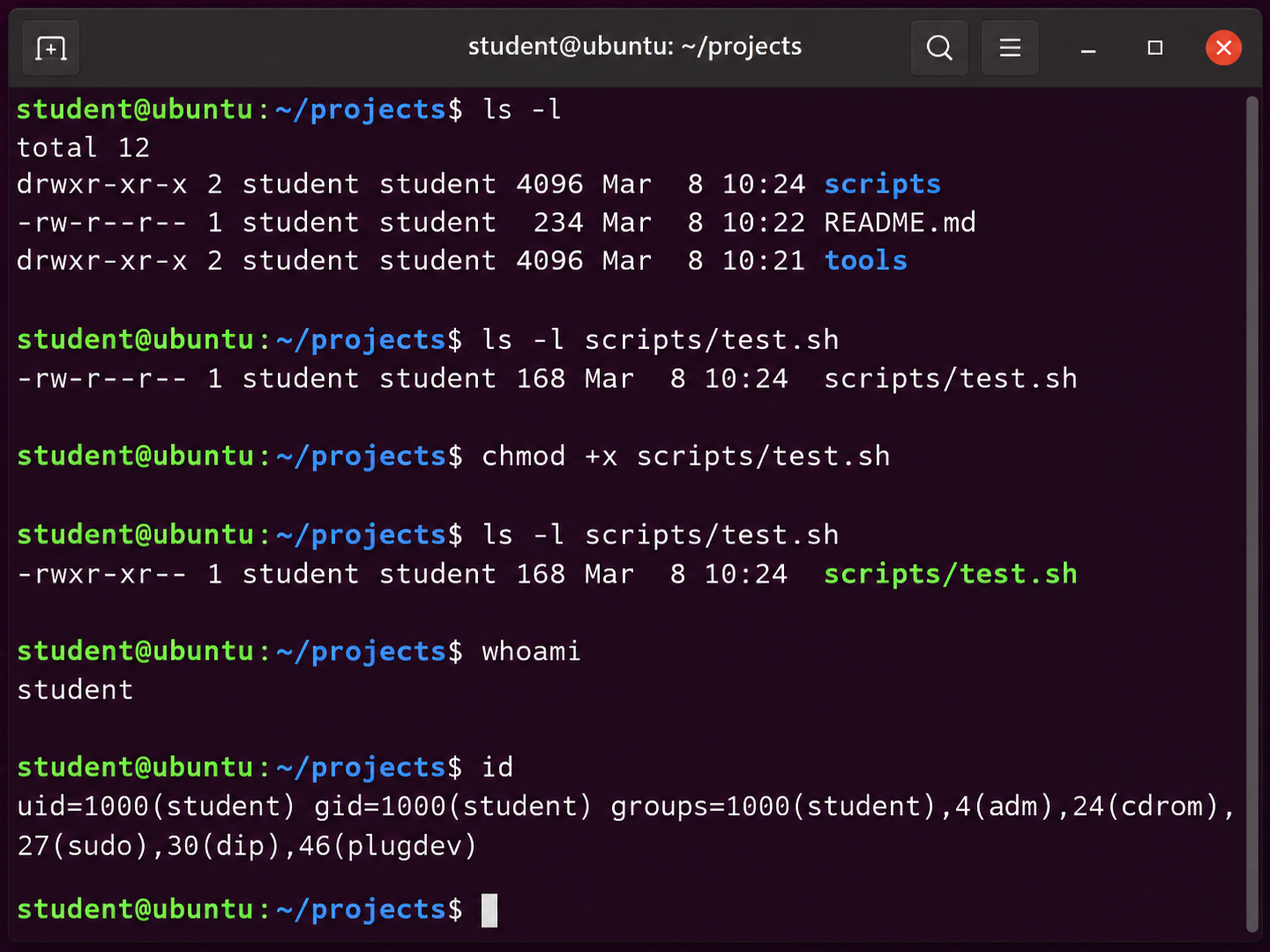
id
idShows the user ID, group ID and group memberships.
sudo
sudo commandRuns an allowed command with elevated privileges.
I do not want to use sudo automatically whenever something fails. If a command needs more privileges, I want to understand why.
Understanding permissions
Permissions are one of the Linux concepts I most want to understand properly.
ls -lmight show something like:
-rwxr-xr--The letters describe what the owner, group and other users can do.
- r: read
- w: write
- x: execute
chmod
chmod +x script.shThis adds execute permission to the script.
chmod 755 script.shI would rather understand what values such as 755 and 644 represent than simply memorise them.
Processes
ps
ps auxShows running processes.
top
topShows process, CPU and memory information in real time. htop provides a friendlier interface when installed.
kill
kill PIDSends a signal to a process by its process ID.
Combining commands with pipes
One thing I already like about Linux is how small commands can be connected together.
ps aux | grep firefoxThe pipe symbol | sends the output of one command into the next one.
grep "error" file.logThe important part for me is not just knowing each command, but learning how to combine them to answer a question.
I do not need Kali Linux to learn Linux
One conclusion I am reaching early is that I do not need to install Kali Linux immediately to learn these fundamentals.
Ubuntu, Debian or another mainstream distribution is perfectly suitable for learning navigation, permissions, processes, users, networking and basic administration.
Kali will make more sense when I start working specifically with security-analysis and testing tools.
My small practical exercise
To avoid just reading commands, I am creating small practice scenarios.
mkdir linux-lab
cd linux-lab
mkdir logs scripts documents
touch logs/system.log
touch documents/notes.txt
touch scripts/test.sh
chmod +x scripts/test.sh
ls -la
find . -name "*.txt"
It is simple, but it forces me to combine several concepts in one session.
The commands I want to master first
pwdlscdmkdirtouchcpmvrmcatlessheadtailgrepfindwhoamiidsudochmodpstopkill
I am not trying to memorise all of them in one day. I would rather use them repeatedly until they become natural.
Next step: understand networking
Linux is only one part of the foundation I want to build.
Next I want to strengthen networking fundamentals: IP addresses, subnet masks, gateways, DNS, ports, TCP, UDP and what actually happens when two machines communicate.
After that I can combine both areas in a small home lab with virtual machines where I can practise safely.
If you want to see where this journey began, read How I’m starting to learn cybersecurity from scratch and follow the full path from the Zwart Apps Cybersecurity journey.