
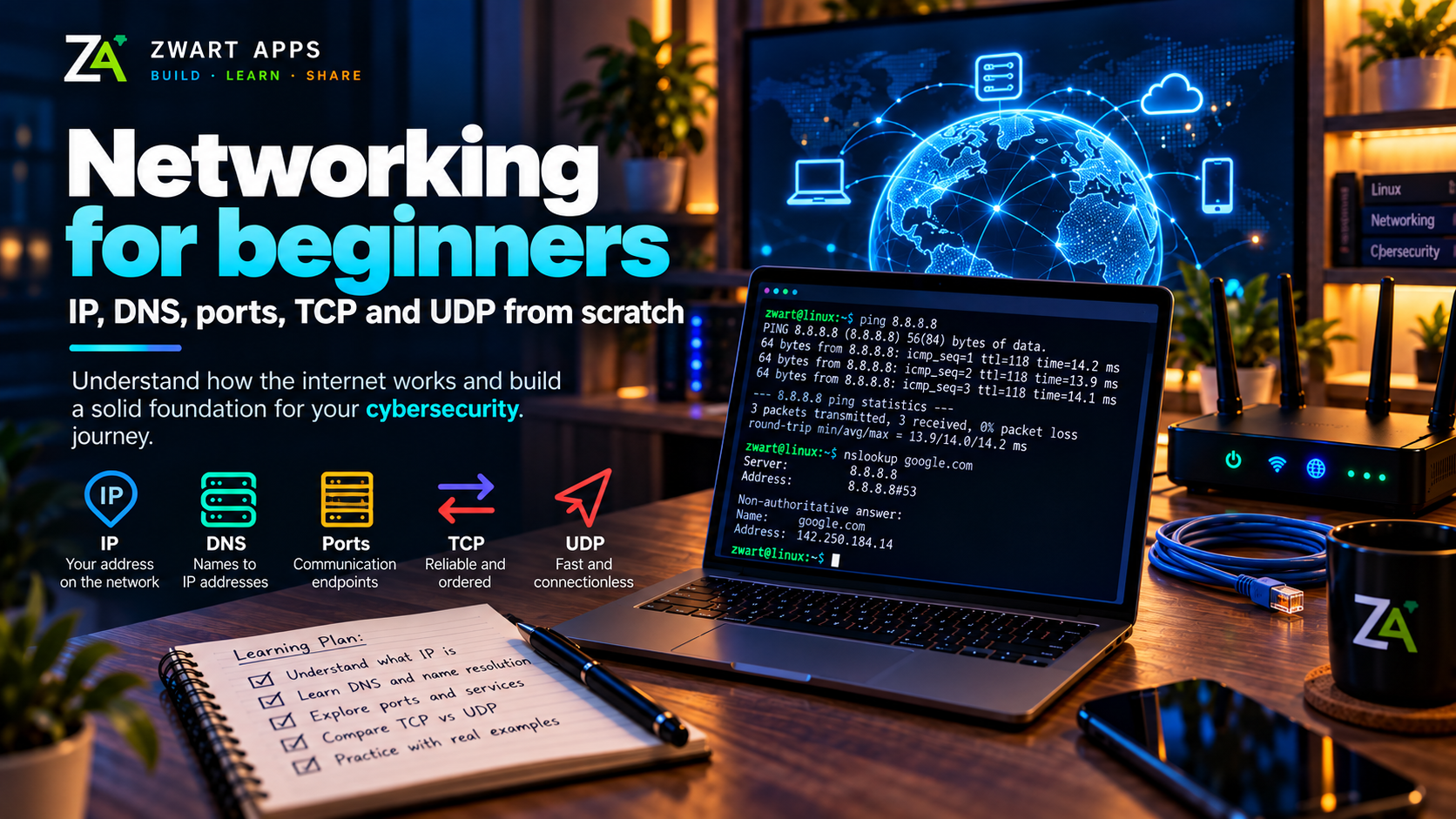
If you are starting in cybersecurity, networking is one of those foundations worth understanding early. You do not need to memorise advanced protocols on day one, but it helps to understand what happens when one device connects to another, how a server is found, and why a website responds the way it does.
As a software developer, I spent years working with applications, APIs and data flows without going very deep into what was happening underneath. Going back to these fundamentals is helping me organise concepts that appear everywhere: IP, DNS, ports, TCP and UDP.
This article continues my cybersecurity learning journey after starting with Linux and the basic commands I am learning first.
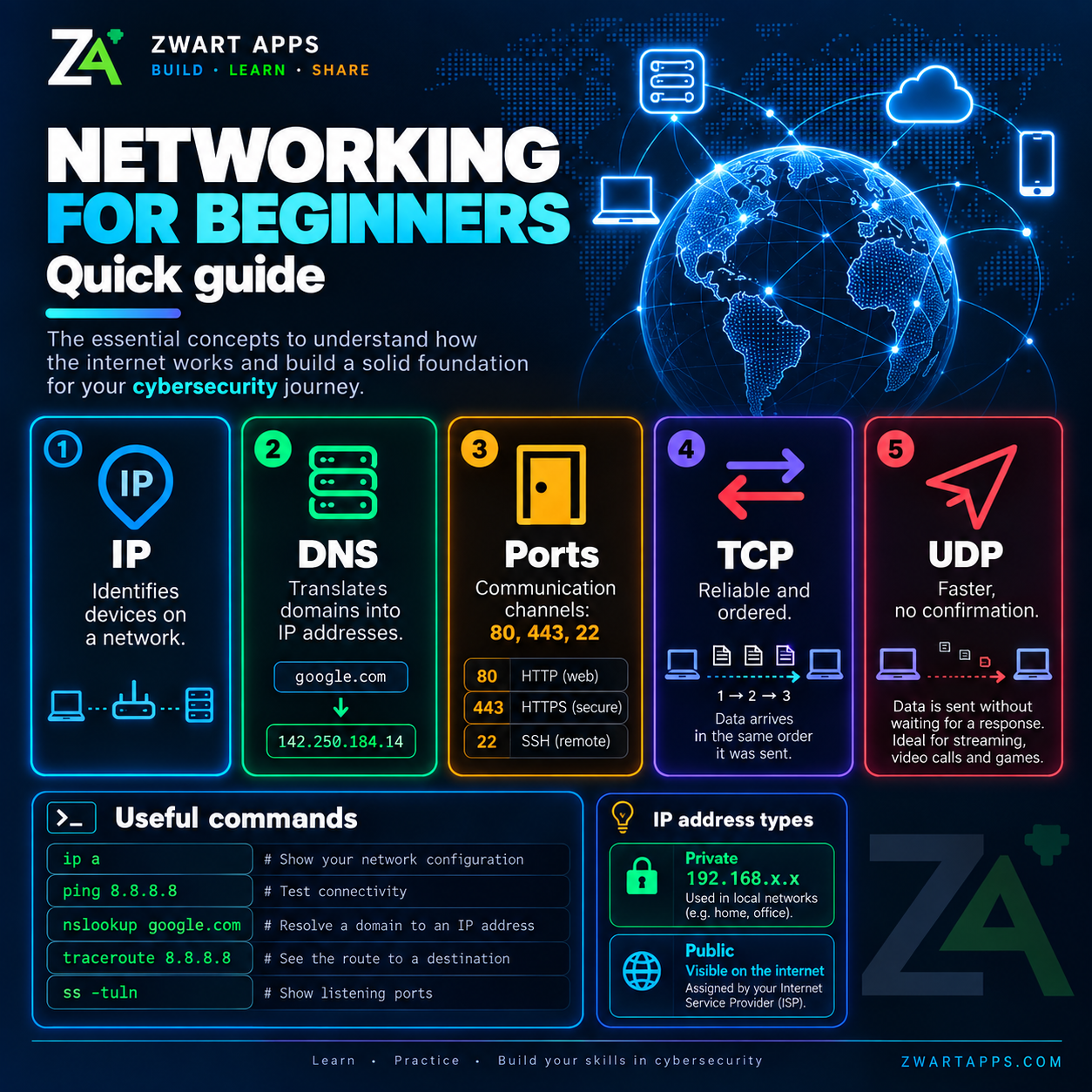
Save it or print it to keep the concepts handy.
What is an IP address?
An IP address identifies a device on a network and helps data know where it needs to go. Think of it as a technical address.
At home, your laptop, phone, TV or console will normally receive a private IP address. A typical example is 192.168.1.100. That address only has meaning inside your local network.
Your Internet connection also uses a public IP address, normally assigned by your Internet Service Provider.
Checking my IP on Linux
ip aThis command shows the network interfaces and IP addresses configured on the machine. Once I build my home lab, it will be one of the commands I use constantly to check which address belongs to each machine.
What is DNS?
We remember names such as zwartapps.com, but computers need IP addresses. The Domain Name System, or DNS, translates those names.
In simple terms:
- you enter a domain in the browser,
- the system queries a DNS server,
- DNS returns the corresponding IP address,
- the browser now knows which server to contact.
Checking DNS from the terminal
nslookup zwartapps.comThere are also tools such as dig, which I want to explore in more detail later.
What is a port?
The IP address identifies the machine. A port identifies the specific service we want to talk to on that machine.
A server can run a website, SSH, a database and other services at the same time. Ports keep those services logically separate.
- 80 – HTTP
- 443 – HTTPS
- 22 – SSH
- 53 – DNS
I do not need to memorise hundreds of ports yet. The important idea is that a connection often targets an IP address + port.
TCP and UDP
TCP and UDP are two transport protocols designed for different needs.
TCP: prioritising reliability
TCP establishes a connection and checks that information arrives correctly and in the proper order. If something is missing, data can be retransmitted.
It is common in web browsing, file transfers, email and other situations where losing information would be a problem.
UDP: prioritising speed and low latency
UDP sends information with less control. That reduces overhead and latency, but it does not guarantee delivery or ordering in the same way.
That makes it useful for streaming, online games, VoIP and other cases where losing an occasional packet can be preferable to waiting for retransmission.
A quick way to remember it
- TCP: more control and reliability.
- UDP: lighter and faster.
How a website works, step by step
Putting the previous concepts together is much more useful than learning each one in isolation. When you enter a URL in the browser, the process can be simplified like this:
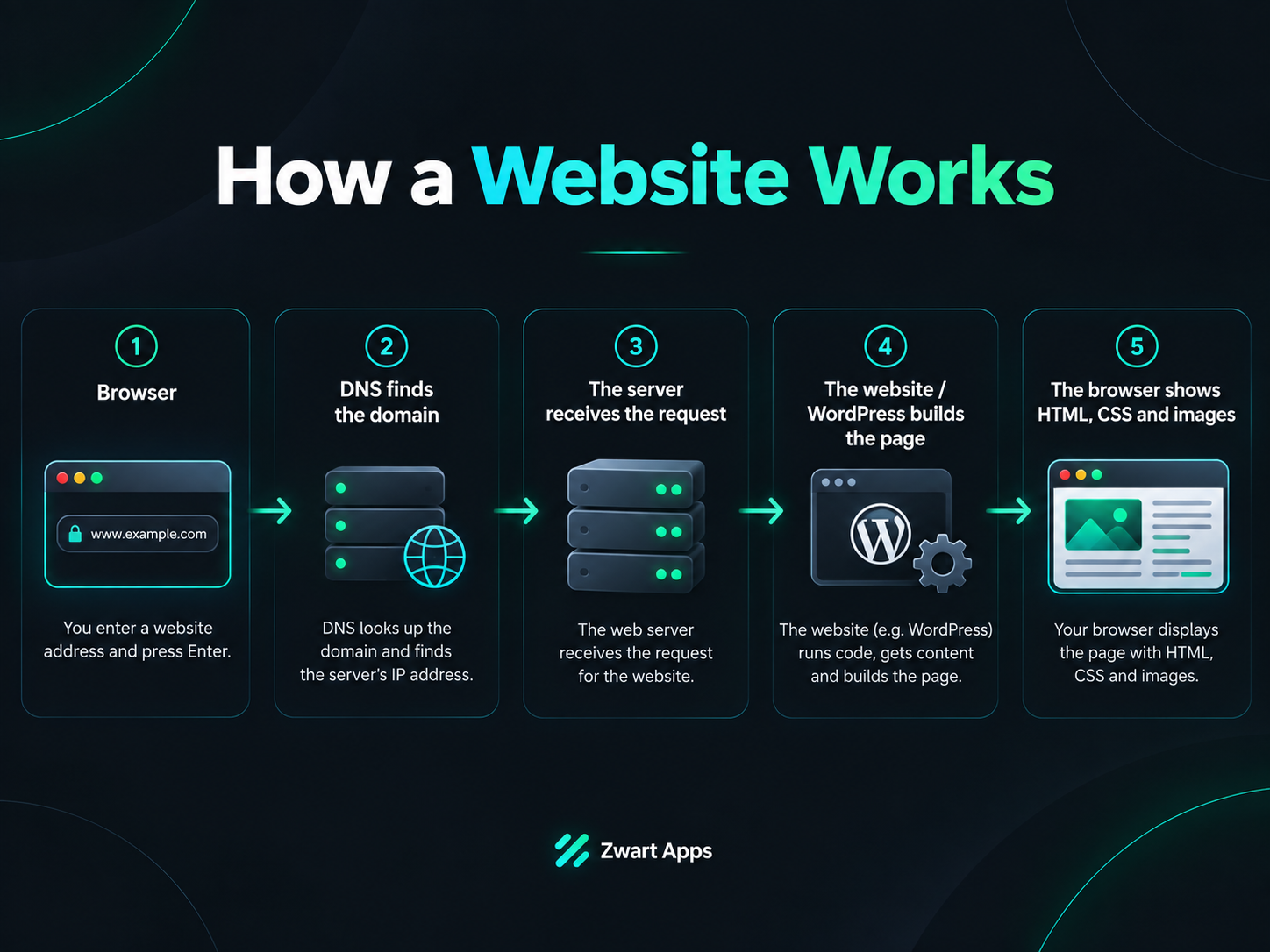
- Browser: you enter the website address.
- DNS: the domain is translated into an IP address.
- Server: it receives the request on the appropriate port.
- Application: WordPress or another system processes the request and builds a response.
- Browser: it receives HTML, CSS, JavaScript, images and renders the page.
There is a lot more behind this – TLS, routing, packets, caches, proxies and CDNs – but this model is already useful when trying to reason about why a website might not respond.
Network commands I want to practise
Just as I did with Linux, I want to pair the theory with simple commands.
Test connectivity
ping 8.8.8.8This checks whether another host can be reached and shows response times.
Query DNS
nslookup google.comSee the route to a destination
traceroute 8.8.8.8On some distributions, traceroute may need to be installed first.
See listening ports
ss -tulnThis starts connecting the theory of ports with what is actually happening on the machine.
Why this matters in cybersecurity
A huge number of security tasks depend directly on networking: discovering hosts, identifying exposed services, checking ports, understanding firewall rules and analysing traffic.
When I eventually use tools such as Wireshark or Nmap, I want to understand what they are showing me rather than simply running commands copied from a tutorial.
What I want to learn next
My next goal is to go a little deeper into local networking: subnet masks, gateways, DHCP, NAT and how several machines communicate inside a lab.
After that I want to build a home lab with virtual machines and start observing real traffic in a controlled environment. That is where Linux and networking should really start coming together.
The goal remains the same: learn step by step, understand what is actually happening and document the process.