ESP32 from scratch: Arduino IDE setup and your first program
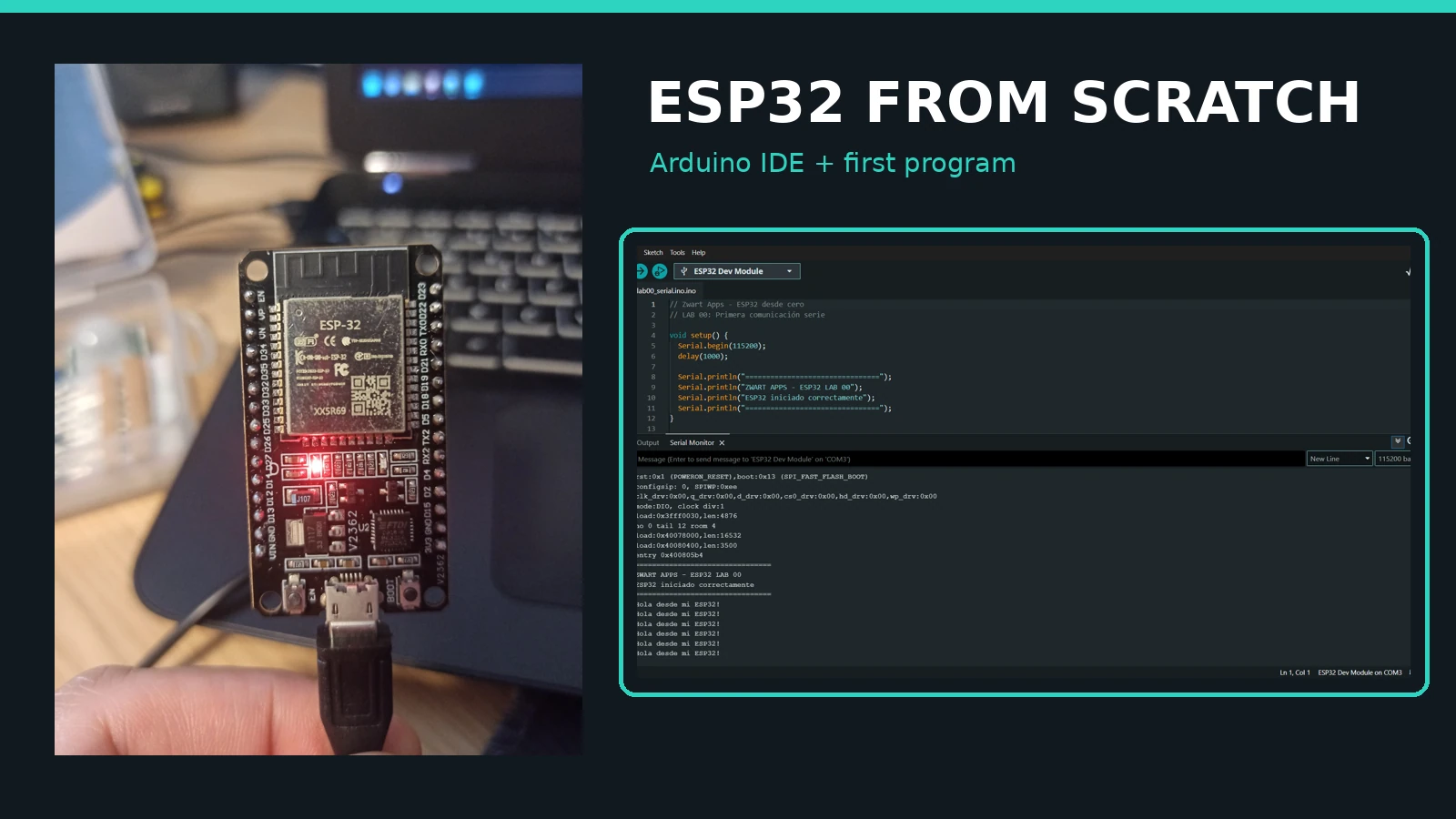
In this ESP32 from scratch tutorial for beginners, we document our real Arduino IDE setup: we identified a 30-pin ESP32 board, installed Espressif board support, selected COM3 and verified the first serial messages.
Hardware and tools
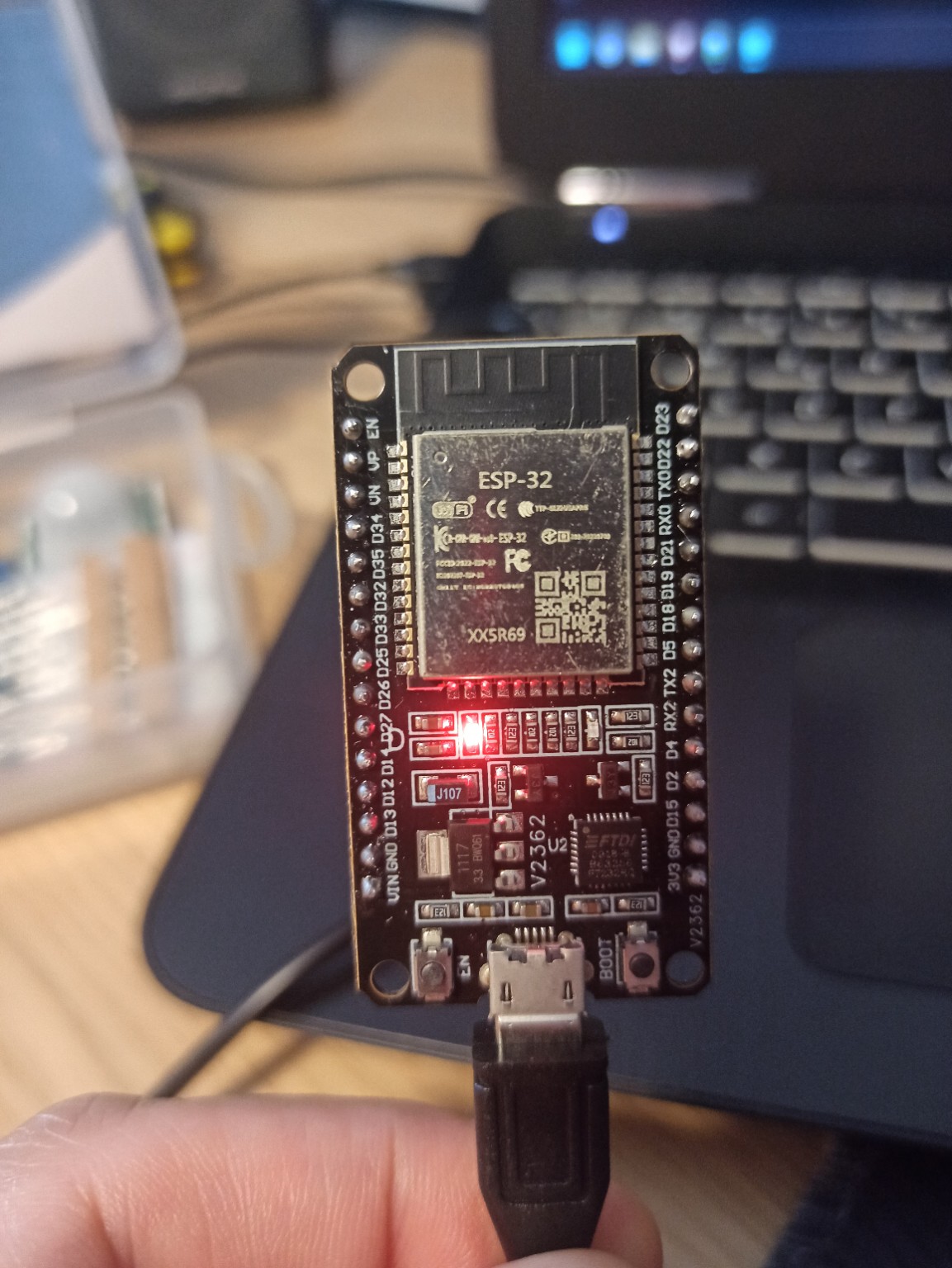
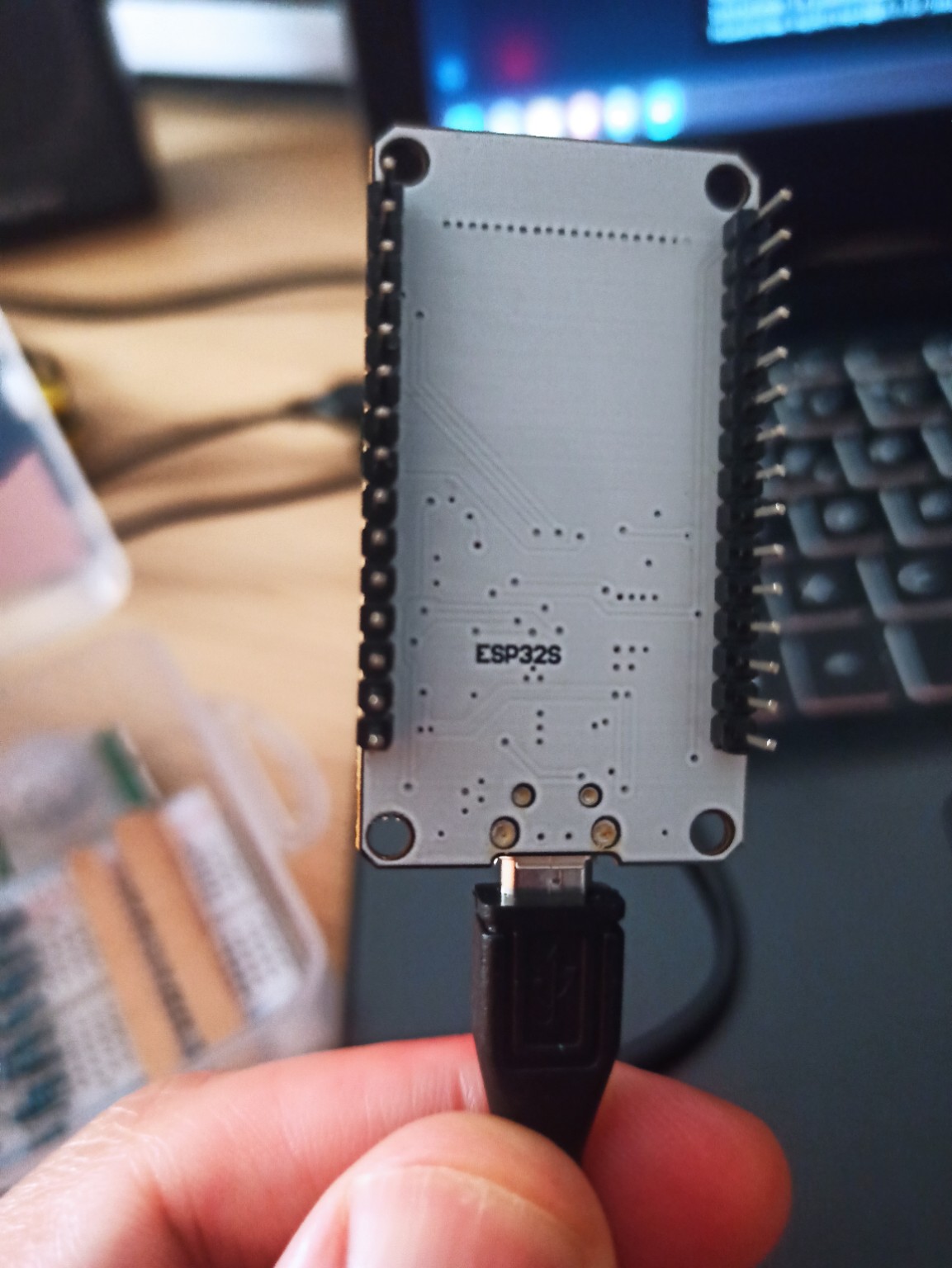
We used a generic 30-pin ESP32 development board, marked ESP-32 on the metal module and ESP32S on the rear, with Micro-USB, EN and BOOT buttons, and a Windows computer. The ESP32S marking on the rear does not mean this is an ESP32-S2 or S3. The USB-to-serial bridge appears to be from the CP210x family, but the exact model was not confirmed.
ESP32 from scratch: step-by-step Arduino IDE setup
1. Connect the board and detect the port
After connecting the board over USB, Arduino IDE showed COM3 Serial Port (USB), but could not find a board: “NO BOARDS FOUND”. A visible serial port does not mean the ESP32 compilation support is already installed.

2. Install the Espressif board package
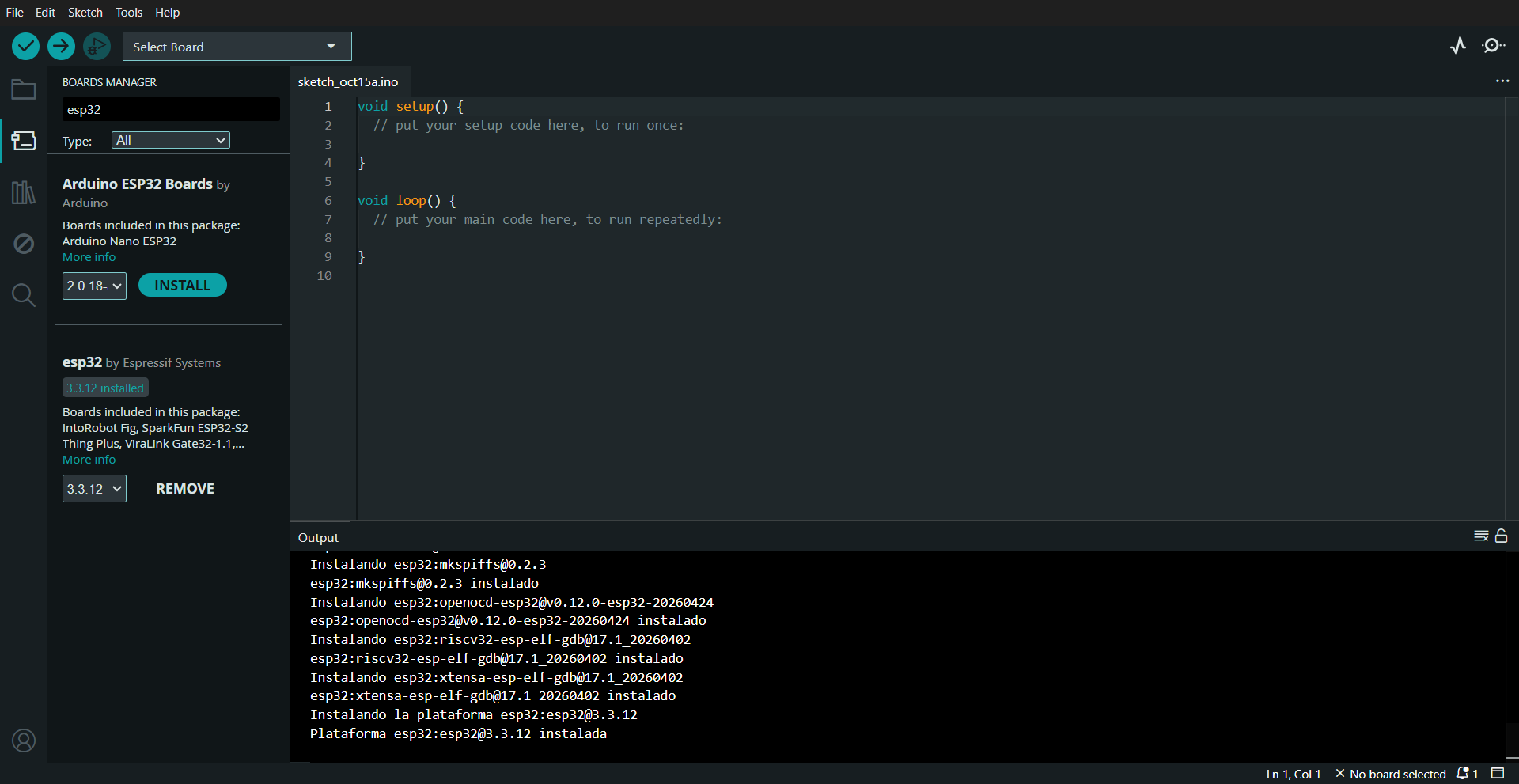
In Boards Manager, we searched for “esp32” and chose esp32 by Espressif Systems, not Arduino ESP32 Boards. We installed version 3.3.12 and the console confirmed the platform was installed. The available version may differ when you follow this guide.

3. Select the correct board
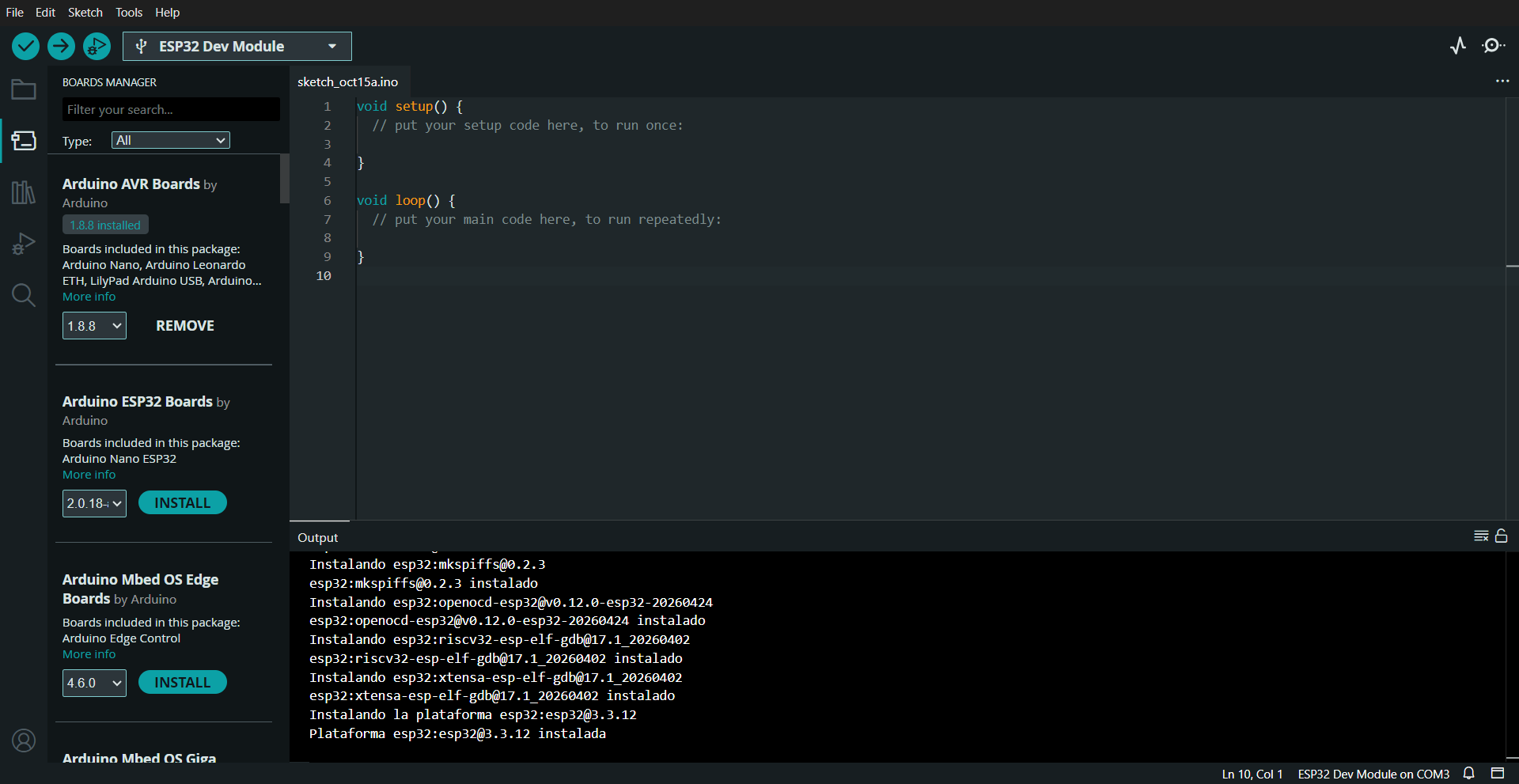
Under Select Board → Select Other Board and Port, we chose ESP32 Dev Module and COM3. We did not select ESP32S2 Dev Module, ESP32S3 Dev Module, or ESP32P4 Dev Module, as those target different chip families. The status bar then showed “ESP32 Dev Module on COM3”.

4. Write and upload the first sketch
We saved the code as lab00_serial.ino, clicked Upload and waited. The console reached 100%, verified the data hash and displayed “Done uploading”. We did not need to press BOOT for this upload.
// Zwart Apps - ESP32 desde cero
// LAB 00: Primera comunicacion serie

void setup() {
  Serial.begin(115200);
  delay(1000);

  Serial.println("================================");
  Serial.println("ZWART APPS - ESP32 LAB 00");
  Serial.println("ESP32 iniciado correctamente");
  Serial.println("================================");
}

void loop() {
  Serial.println("Hola desde mi ESP32!");
  delay(2000);
}

5. Check the Serial Monitor
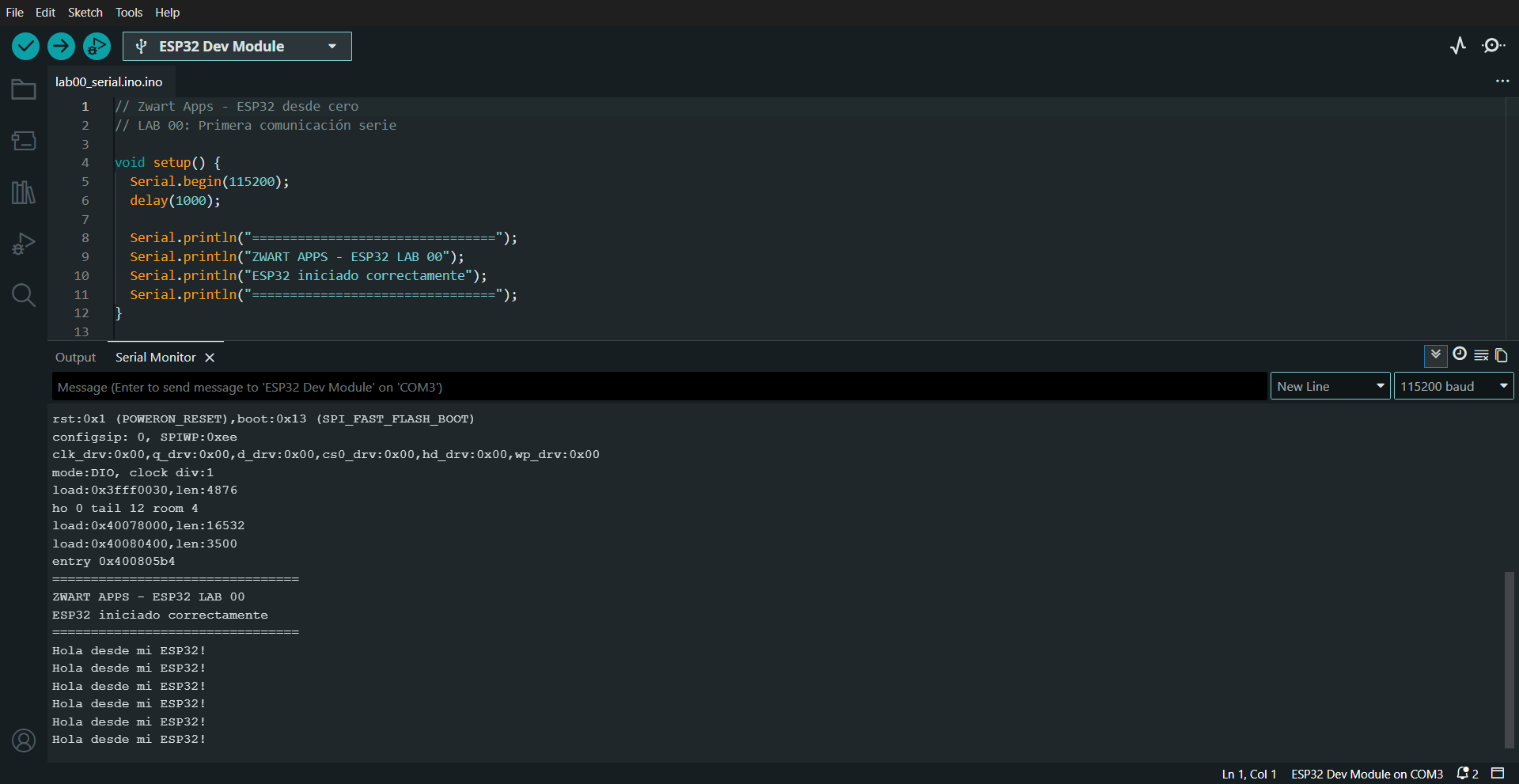
We opened Tools → Serial Monitor and selected 115200 baud. The startup banner appeared, followed by “Hola desde mi ESP32!” every two seconds. The second screenshot also shows normal boot lines such as POWERON_RESET and SPI_FAST_FLASH_BOOT.
Observed issues and solutions
- No boards available: install esp32 by Espressif Systems. Detecting a serial port and recognizing a board are separate things.
- Unreadable characters in the Serial Monitor: they appeared briefly in our first capture, followed by readable output. Boot messages or a temporary baud-rate mismatch are possible reasons; the exact cause was not verified. Check that the monitor is set to 115200 baud.
- If another board stalls at “Connecting…”, holding BOOT as the connection starts and releasing it when flashing begins may help. This was not necessary in our test.
First ESP32 program: verified lab result
Successful real-world test: compiling, flashing, verification and serial reception were confirmed. The next lab will control an external LED using a GPIO, resistor and breadboard, once the kit contents are verified. A video covering this setup is planned but not yet published.